Connect an existing project · 7 minutes
Connect an existing Unreal project
Attach Avori to an Unreal project you already have.
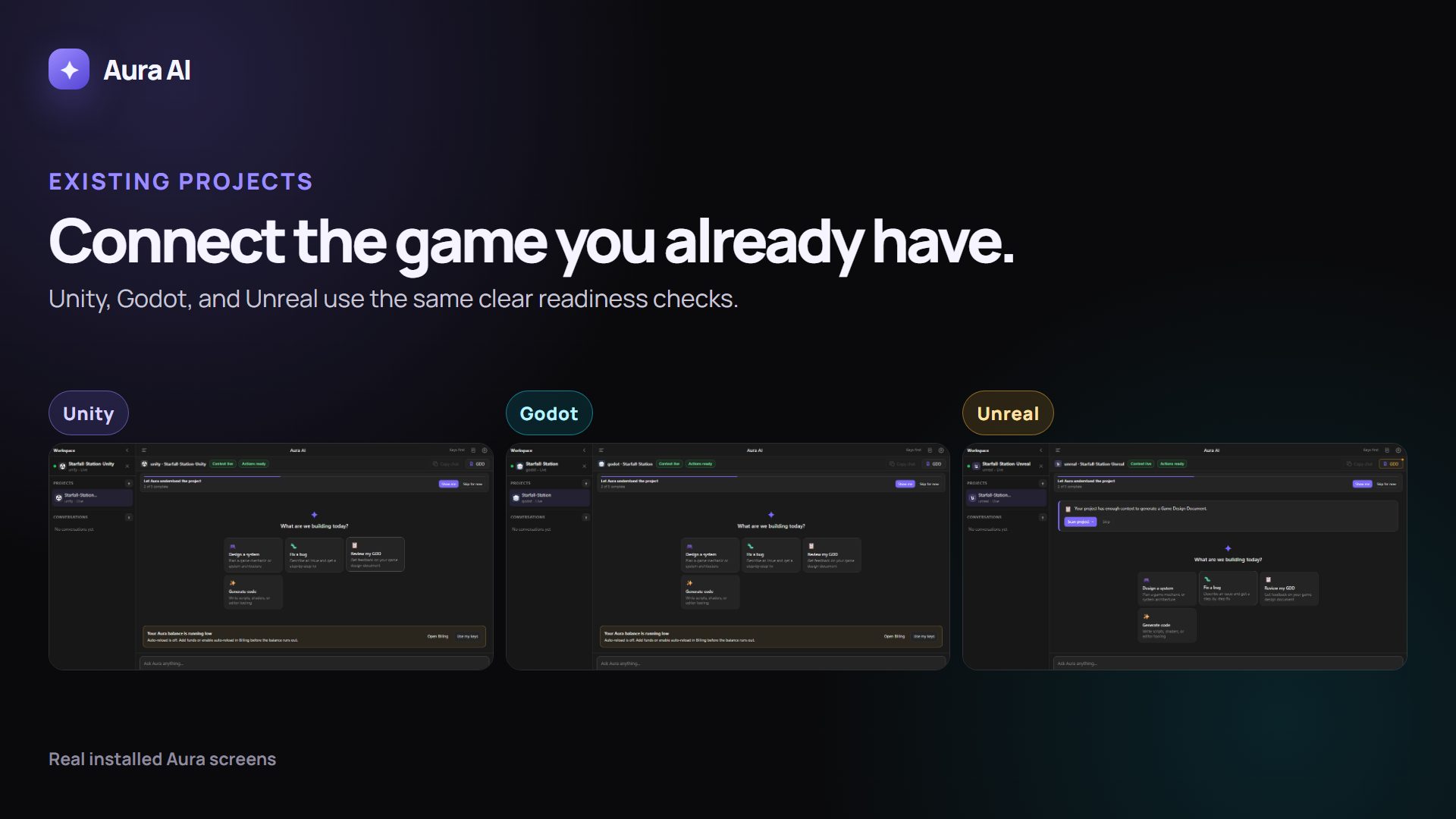
The silent walkthrough could not load. The screenshot and written steps remain available.
Use this guide with Avori
Open Avori, then keep this guide beside it while you follow the steps. Avori does not receive the page text, your account, your project, or anything you typed.
If nothing opens, start Avori normally. The written steps still work.
Before you start
- The Unreal project opens successfully.
- Avori is installed and signed in.
- A C++ project is required for the Avori plugin.
Plan and model funding
Connecting and local scanning are local operations. The explanation request uses the selected model funding source.
Say this in ordinary language
Explain the player's main gameplay loop in this project. Do not change anything.
Steps
-
1
Choose Connect an existing project.
What you should see: Windows opens a folder picker.
-
2
Choose the project root containing the .uproject file.
What you should see: Avori identifies Unreal and connects the project.
-
3
Open the exact project in Unreal and finish any plugin compile.
What you should see: The Avori panel connects to that project.
-
4
Ask the prompt above.
What you should see: Avori explains the real project without changing it.
What Avori may change
Avori installs/connects its project plugin and indexes supported local context.
How to verify it worked
Avori identifies the Unreal project and its explanation matches the real gameplay implementation.
Undo or recover
Disconnect the project and reject any proposed action.
Common problems
- Select the folder containing the .uproject file.
- If the plugin cannot compile, add a C++ class and rebuild the project.