Work from another device · 12 minutes
Use Avori from your browser
Keep building from another device: connect an authorized GitHub repository, have Avori work on an isolated avori/ branch, then continue and verify the work in your engine with desktop Avori.
Use this guide with Browser Avori
Open Avori in your browser, then keep this guide beside it while you follow the steps. Browser Avori is part of Avori Pro and Studio.
On Core, /app explains Browser Avori and offers Pro plans. Desktop Avori keeps working: download Avori for Windows.
Before you start
- An Avori Pro plan, or a seat in an Avori Studio organization.
- A GitHub account with access to the repository that holds your game project.
- Desktop Avori for Windows installed on your development computer, signed in to the same Avori account, so you can verify the work in your engine later.
- For the desktop handoff: a local git checkout of the same repository opened in desktop Avori.
Plan and model funding
Browser Avori is included with Pro and Studio. Model usage is separate: browser work uses the funding you select, such as your own provider key or your Avori Balance. Opening Browser Avori, connecting GitHub, and following progress do not use model funds. On Core you can open /app to see how it works, but starting browser work requires Pro; desktop Avori keeps working on your current plan.
Say this in ordinary language
Add a double jump with a short cooldown to the player controller, and follow the movement rules in my project rules.
Steps
-
1
Sign in at avorihq.com and open Avori in your browser at /app.
What you should see: Pro and Studio accounts see the browser workspace with a Connect a repository panel. Core accounts see an explanation of Browser Avori with Upgrade to Pro and Download Avori for Windows instead of work controls.
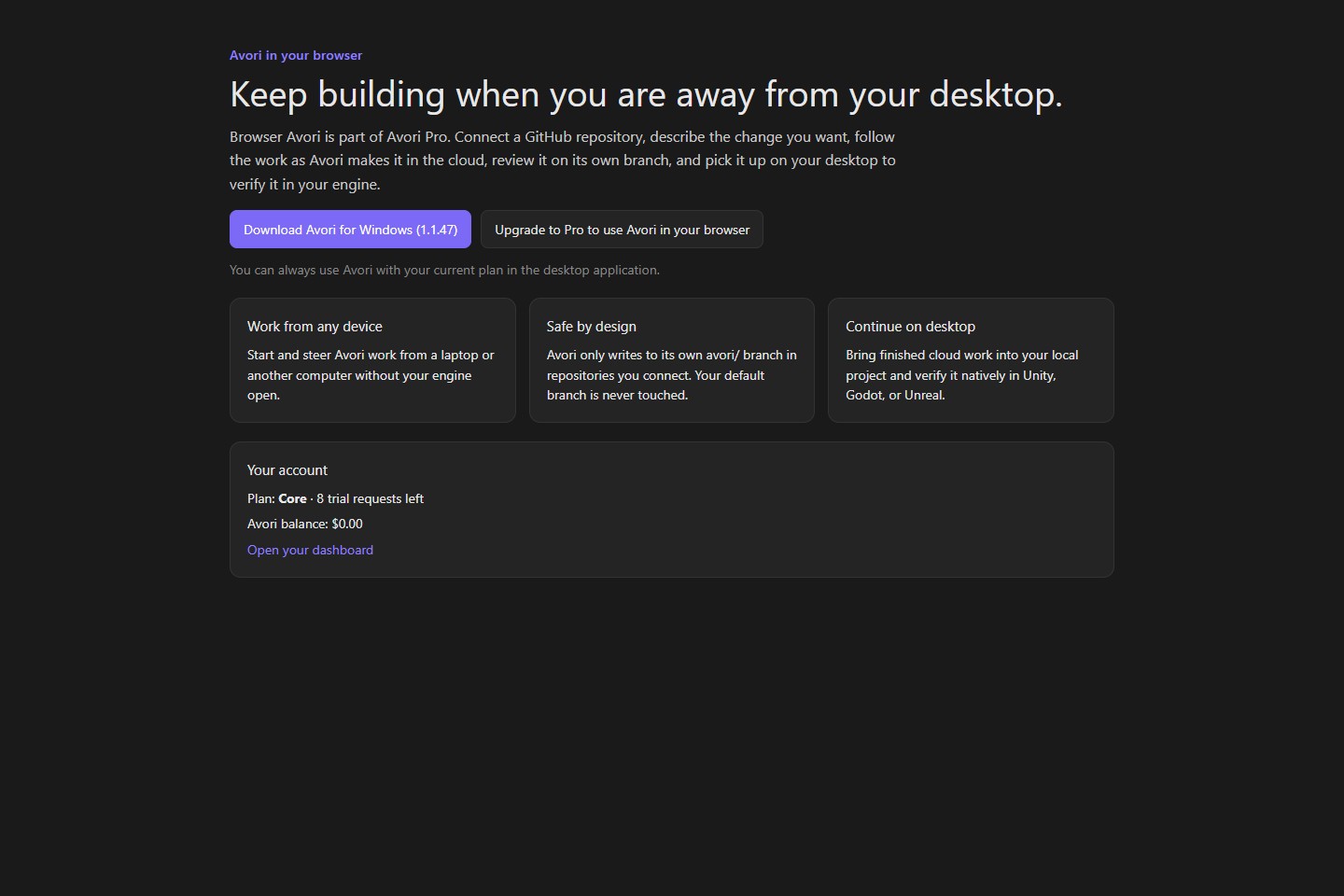
Core accounts can download desktop Avori or upgrade to Pro; cloud work controls stay unavailable. -
2
Choose Install the Avori AI app on GitHub and install it only on the repository you want Avori to work on.
What you should see: GitHub lists the Avori AI app on the repositories you selected. Repositories you did not select stay inaccessible to Avori.
-
3
Back in /app, choose Sign in with GitHub so Avori can confirm which installations you can use.
What you should see: GitHub returns you to /app and a Repository list appears. It contains only repositories the Avori AI app is installed on and that your GitHub account can access.
-
4
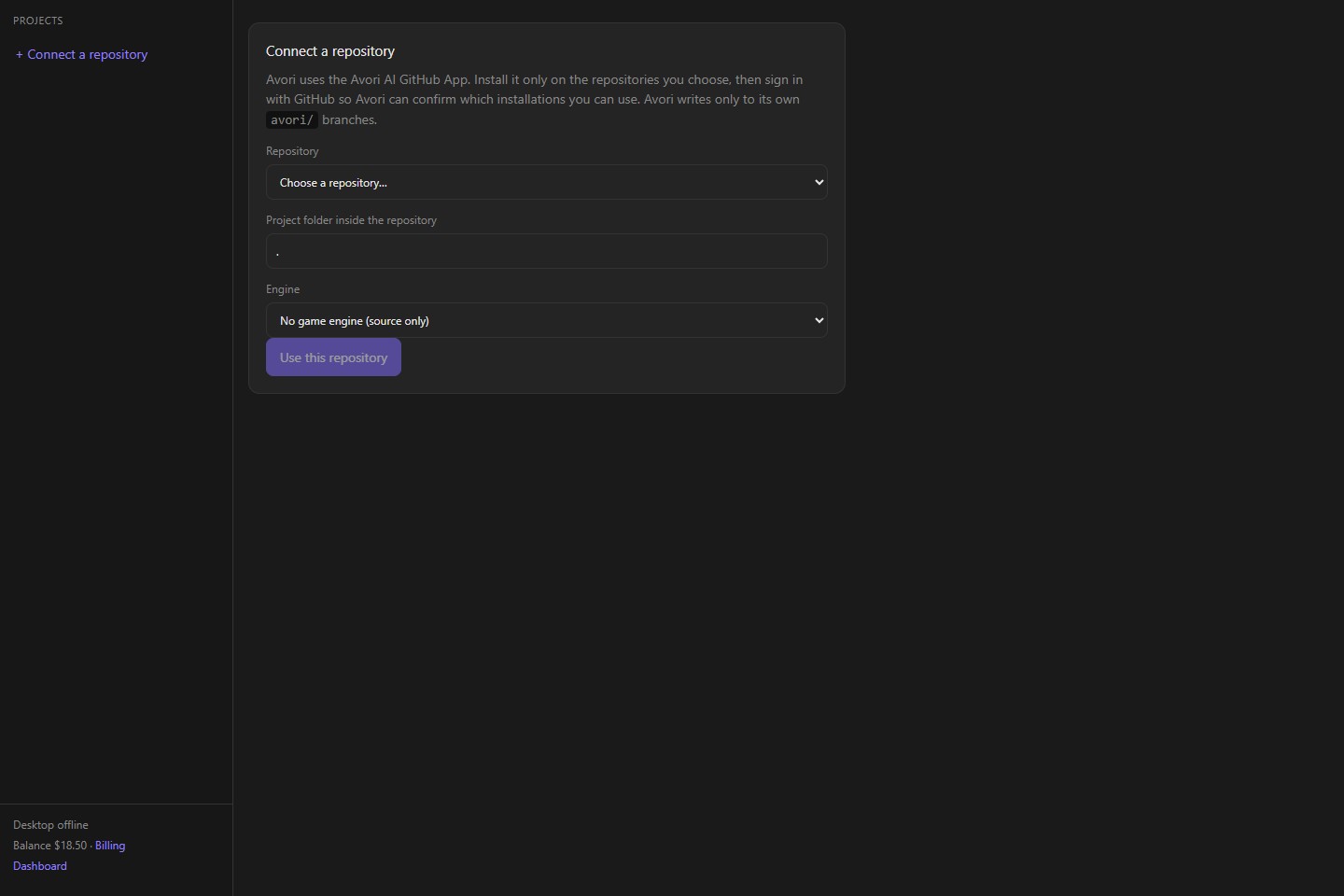
Select the repository, enter the folder that holds your game project (or . for the repository root), choose the engine the project uses, and choose Use this repository.
What you should see: The project opens with its repository and folder under the project name, and a note that Browser Avori edits source in an isolated cloud copy and commits to an avori/ branch.
-
5
Open GDD & rules, then review or add your game design document and project rules, and choose Save.
What you should see: Avori confirms the save and says new tasks use this version. Rules you write here apply to every task you start in this project.
-
6
Choose the base branch, describe the outcome you want in ordinary language, and choose Start.
What you should see: Your request appears in the conversation and a task card shows progress, starting with preparing the repository workspace and then editing source in the cloud.
-
7
If the task card says Needs your decision, read the proposed actions and choose Approve and continue only if they are what you intend. Otherwise add an instruction or choose Stop.
What you should see: Approved work continues. A stopped task stays stopped until you choose Resume.
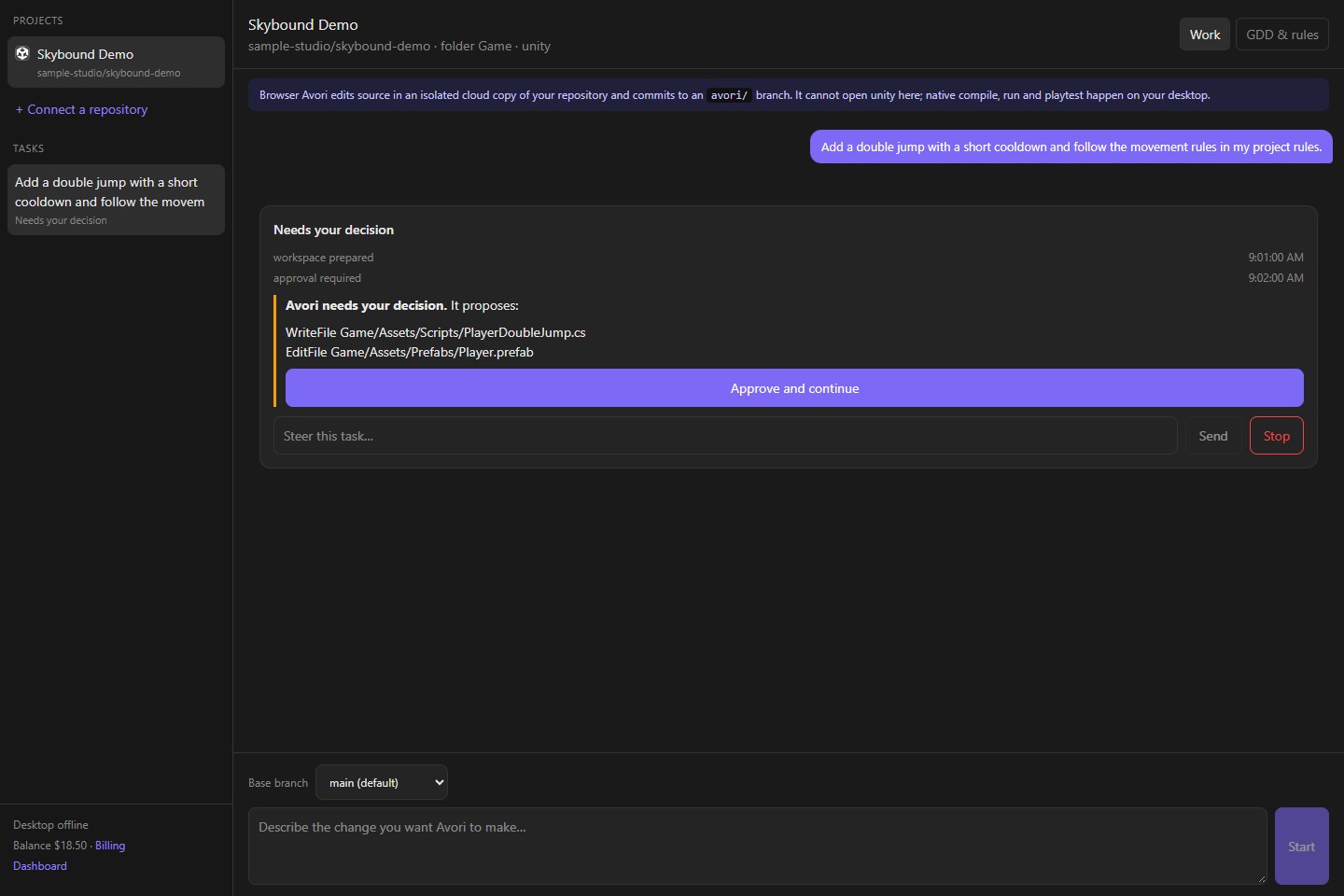
Browser Avori stops for a decision before the proposed file changes continue. -
8
Follow progress until the task finishes. You can close the page and come back later; the task and its history are kept.
What you should see: The task card shows each stage with times. It never reports a Unity, Godot, or Unreal build, import, or playtest as passed, because the cloud does not run your engine.
-
9
Review the result: open the avori/ branch and commit links and expand the changed files.
What you should see: The card names the branch, the commit, and the base it started from, lists the changed files, and states that your default branch was not changed.
-
10
Choose Continue on desktop (or Bring into my desktop project for source-only projects) while desktop Avori is running and signed in.
What you should see: The page confirms it was sent to your desktop. Desktop Avori fetches the avori/ branch into your local checkout of the same repository.
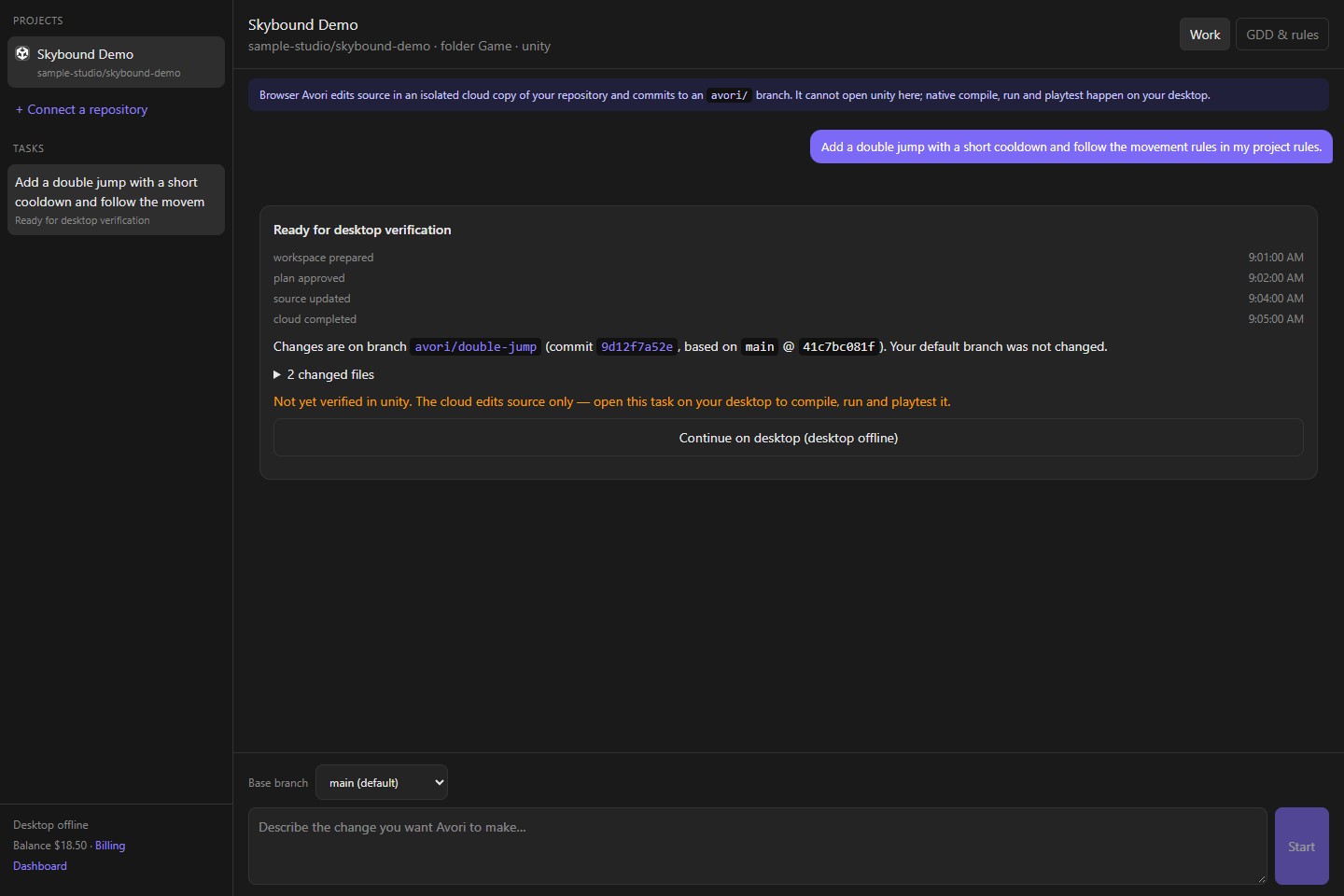
The result names its branch and changed files, preserves the default branch, and waits for desktop engine verification. -
11
If your desktop is offline, send it anyway or use the git commands the page shows.
What you should see: The request waits and desktop Avori picks it up the next time it starts and you are signed in. The sidebar shows whether your desktop is online.
-
12
If desktop Avori reports uncommitted local changes, commit or stash them in your local checkout, then choose Continue on desktop again.
What you should see: Desktop Avori does not switch branches over unsaved work. The task card shows the message from your desktop, and your local files stay exactly as they were.
-
13
Open the project in Unity, Godot, or Unreal with desktop Avori and verify the change in your engine: let the engine import and compile, then run and playtest it.
What you should see: Your engine opens the project on the avori/ branch. Verification results come from your engine on your computer, not from the browser.
-
14
When the change is verified, merge the avori/ branch into your default branch the way your team normally merges, or keep iterating from the browser or desktop.
What you should see: Your default branch changes only when you merge. The browser keeps the task history for later reference.
What Avori may change
Avori changes source files only on its own avori/ branch in the repository you authorized. Your default branch, other repositories, and your local files are not changed by browser work. Deleting or moving files requires your approval.
How to verify it worked
The avori/ branch contains the changed files listed on the task card, your default branch is unchanged, and after Continue on desktop your engine imports, compiles, and plays the change on your computer.
Undo or recover
Do not merge the avori/ branch, or delete it on GitHub. Stop a running task at any time; resume only when you choose. On the desktop, switch back to your previous branch; any changes you committed or stashed before the handoff are still there.
Common problems
- If /app shows Upgrade to Pro, your account is on Core. Desktop Avori keeps working; Browser Avori needs Pro or a Studio seat.
- If your repository is missing from the list, install the Avori AI app on that repository on GitHub, then choose Sign in with GitHub again.
- If a task stops with a funding message, choose a funding source you have set up, such as your own provider key or Avori Balance, then resume the task.
- If the desktop handoff waits, start desktop Avori on your development computer and sign in with the same account.
- If desktop Avori reports uncommitted local changes, commit or stash them first; it will not overwrite your work.